6 AI photo-to-sketch tools to consider in 2026
To turn a photo into a sketch, open the photo to sketch tool at imagetodrawing, upload a clear photo, choose Pencil Sketch and download the result. You can make 3 free drawings a day across 5 Basic styles without creating an account. Below are six tools to consider, depending on whether you prefer fixed styles, editing controls or a conversation.
Best AI photo to sketch tools: a practical comparison
This guide is published by imagetodrawing, which appears first. It compares workflows and documented features, not results from a six-tool image-quality test. Competitor details were checked against the linked official pages on November 4, 2026; “Not tested” means we have not verified that allowance, account requirement, license or export size.
| Tool | Free allowance | Styles | Sign-up required? | Commercial use | Output resolution | Best fit |
|---|---|---|---|---|---|---|
| imagetodrawing | 3 drawings/day; Basic styles | 8 total: 5 Basic free; 3 HQ at 3 credits/drawing | No for free drawings; yes to buy and use credits | Paid drawings include a commercial license; source-photo rights still required | Free: 1024px; paid: up to 2048px long edge | A direct photo-to-drawing workflow with named styles |
| Fotor | Not tested | 16+ sketch styles advertised by Fotor | Not tested | Not tested | Not tested | Browsing a larger catalog of sketch looks |
| BeFunky | Sketch effects require BeFunky Plus, according to its feature page | Count not tested; pencil, ink and graphic-novel effects listed | Not tested | Not tested | Not tested | Adjusting sketch effects inside a photo editor |
| Picsart | Not tested | Count not tested; pencil and ink effects listed | Not tested | Not tested | Not tested | Customizing effect strength and sketch colors |
| Adobe Firefly | Not tested | No fixed count verified; reference image plus written instructions | Not tested | Not tested | Not tested | Describing the line-art result you want from a reference photo |
| ChatGPT Images | Not tested | No fixed count verified; describe the sketch in a prompt | Not tested | Not tested | Not tested | Requesting image edits and refining them in a conversation |
For imagetodrawing, the free daily allowance is shared across the five Basic styles. Free downloads have a watermark; paid drawings remove it and include commercial use under the drawing license terms. The 2048px figure is a maximum long edge, not a promise to enlarge every source image to that size.
Which photo-to-sketch tool fits your workflow?
1. imagetodrawing: choose a style and download
The photo to sketch tool offers Pencil Sketch, Line Art, Charcoal, Ink and Cartoon as Basic styles, with Color Pencil, Watercolor and Pastel in HQ. It is a useful starting point when you want a named style without writing a prompt; paid Basic drawings use 1 credit each and HQ drawings use 3. Compare the photo to sketch examples to decide whether pencil shading or a cleaner outline suits your photo.
2. Fotor: a larger sketch-style catalog
Fotor’s photo-to-sketch page lists 16+ looks, including pencil, contour and ink styles. That makes it worth considering if your first decision is which visual treatment to use; its published workflow is upload, choose an effect and save. We have not verified its current free-generation allowance or the pixel dimensions of downloaded files.
3. BeFunky: sketch effects with editor controls
BeFunky’s sketch effects sit in its photo editor’s Artsy section, and the official page says they require a Plus subscription. It describes AI-powered GFX effects and controls for how closely a sketch resembles the original photo. Consider it when you want to adjust an effect in an editor; free export availability and output resolution were not tested here.
4. Picsart: adjust the strength and color
Picsart’s AI sketch effects include pencil and ink treatments, with sliders for effect strength and controls for sketch colors. Those controls may suit a photo you intend to refine as part of a design rather than download after one conversion. We have not verified its free allowance, commercial-use terms or export dimensions for this workflow.
5. Adobe Firefly: describe line art from a reference
Adobe Firefly’s line-art workflow supports uploading a reference photo and describing the drawing you want. It is an option for people who prefer written instructions for the subject and line treatment. We have not tested its current allowance, export size or licensing conditions for the selected generation option.
6. ChatGPT Images: refine a sketch in conversation
ChatGPT Images can edit an uploaded image from a written request, and you can ask for changes after seeing the result. This is useful when you want to describe a particular pencil texture or revise the drawing conversationally. We have not measured its photo-to-sketch output quality, usage limits or export dimensions in this comparison.
One photo, different drawing styles
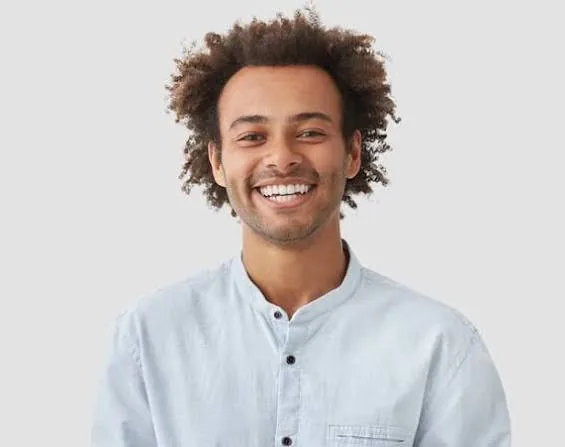
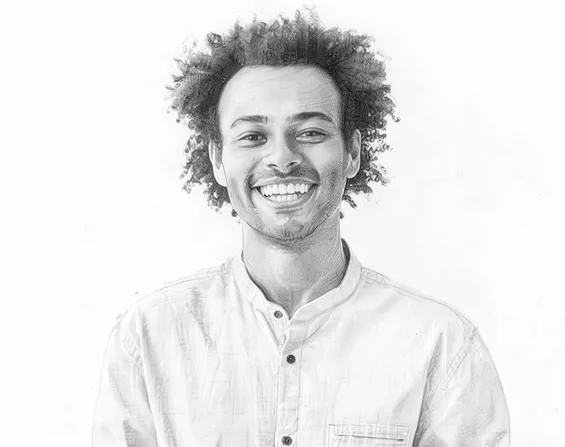
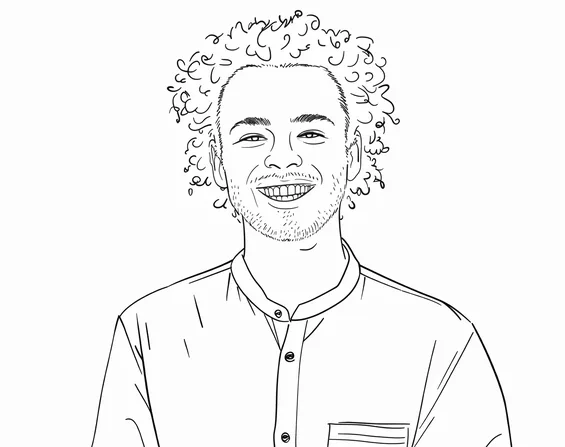
These are existing imagetodrawing examples from the photo to drawing showcase, using the same source portrait. They illustrate our style choices; they are not competitor screenshots or a comparison of the six tools’ output quality.
How to turn a photo into a sketch with imagetodrawing
- Upload your photo. Open the photo to sketch upload tool and select a JPG, PNG, WEBP or HEIC photo. A clear face or subject and a simple background make it easier to judge the drawing.
- Choose Pencil Sketch. Use the style choices in the photo to sketch converter. Start with Pencil Sketch for shading, or Line Art when you want less texture.
- Make the drawing. Select “Make drawing” in the AI photo to sketch tool and wait for the result. The daily free allowance covers Basic drawings; HQ styles require paid credits.
- Review and download. Check the face, hands and background in the photo to sketch result, then download the PNG. If you plan to print it, check the saved image dimensions before choosing a print size.
Can ChatGPT turn a photo into a sketch?
Yes. ChatGPT can use its built-in image generation and editing tools to turn an uploaded photo into a sketch. Upload a photo and ask for the pencil-sketch treatment you want; the image tool creates the picture, while a text-only answer can only describe the edit. OpenAI’s image editing guide explains this upload-and-instruct workflow.
If you prefer a fixed set of drawing styles, the browser-based photo to sketch tool at imagetodrawing takes you from upload to style selection and download without writing a prompt. Both approaches can be useful; choose based on the controls you want.
How can I turn a photo into a sketch drawing?
Upload a clear photo, choose Pencil Sketch, generate the drawing and save the PNG with the photo to sketch converter. For open outlines instead of shaded pencil marks, use photo to line art; for a printable sheet you can color, start with photo to coloring page.
Check the result before you print or publish
“Sketch” can mean several different things. Pencil shading can preserve the feeling of a portrait, while line art leaves more white space around the subject. Choose the style that matches the intended use, then inspect small details at full size: an AI drawing may alter a face, a finger, lettering or an object in the background.
Pixel dimensions, watermark rules and usage rights are separate questions. A download described as “high resolution” does not tell you its long-edge size, and access to an effect does not by itself confirm a commercial license. Check those details in the selected tool before paying or using the result commercially, and make sure you have permission to use the original photo.